 Moduloom
Moduloom for tutors and teachers: the complete manual
A manual for tutors and teachers: how to build an interactive lesson with a quiz in one evening, give students sign-in with a code and see who answered what.
Sign-in and the company account
Every company has its own account address — company.moduloom.online (or company.moduloom.ru). There are no passwords: the teacher enters a work email and gets a one-time code by email. The owner named at sign-up signs in first and then invites colleagues.
- Open your account address or click “Sign in” on the website and enter the company address.
- Enter your email and click “Get code”.
- Enter the six digits from the email — the home page opens.
The home page shows the plan limits (users, workspaces, presentations, storage, builds and AI credits), recent presentations, available publishing channels and the latest builds. The left menu collapses with the button above the sections.
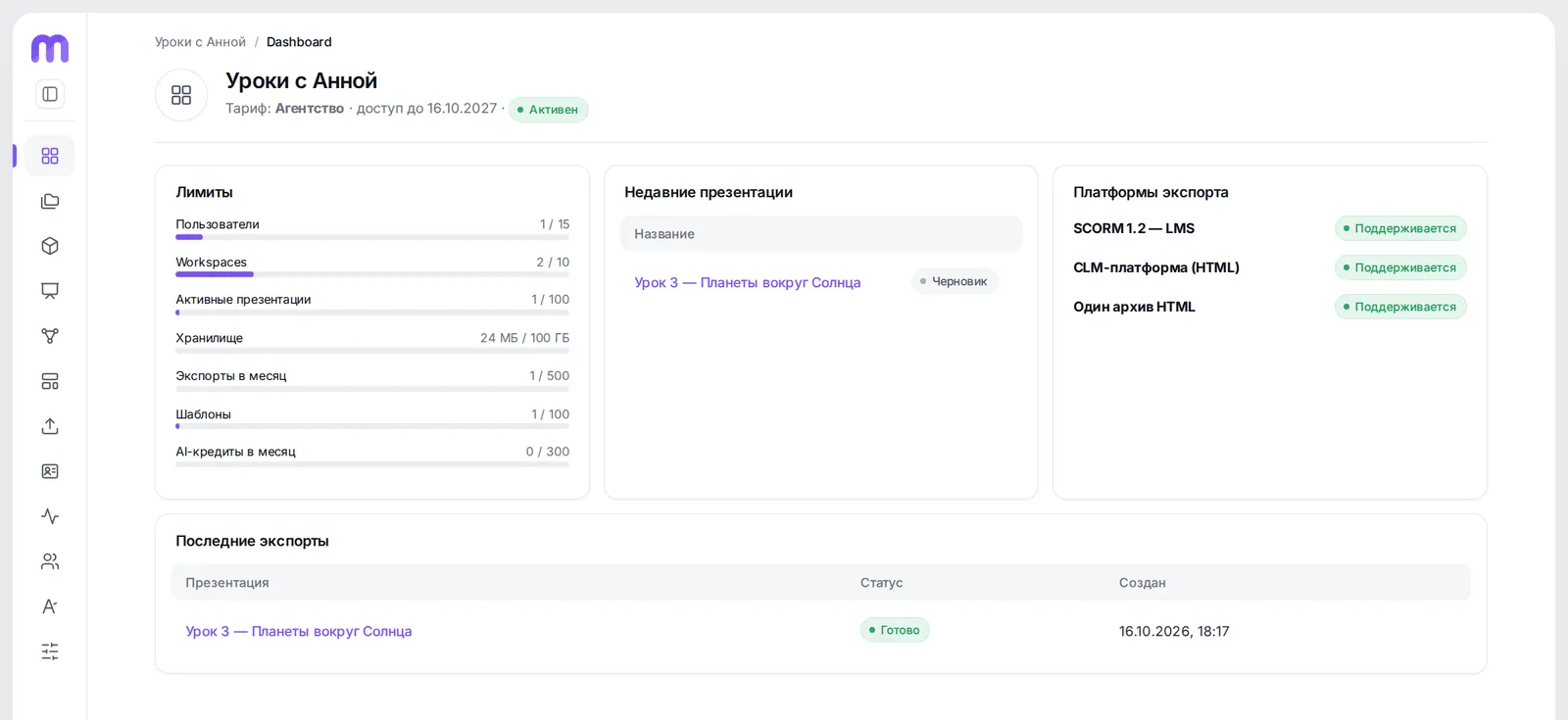
- Plan limits: people, presentations, storage, AI credits
- Recent presentations — open in one click
- Where you can build packages
Workspaces and products
A workspace is a top-level folder: a topic, client, department or line of business. In this example they are “Science” and “Reading”. Each workspace has its own presentations, templates, export profiles and access permissions.
Inside a workspace you can create products — a second level of grouping (for example, a class, a program, a brand or a product line). The product is chosen when a presentation is created and is handy for filtering the list.
- “Workspaces” section → “New workspace”.
- Enter a name and, optionally, a code — it is useful in package names.
- Add products inside the workspace in the “Products” section.
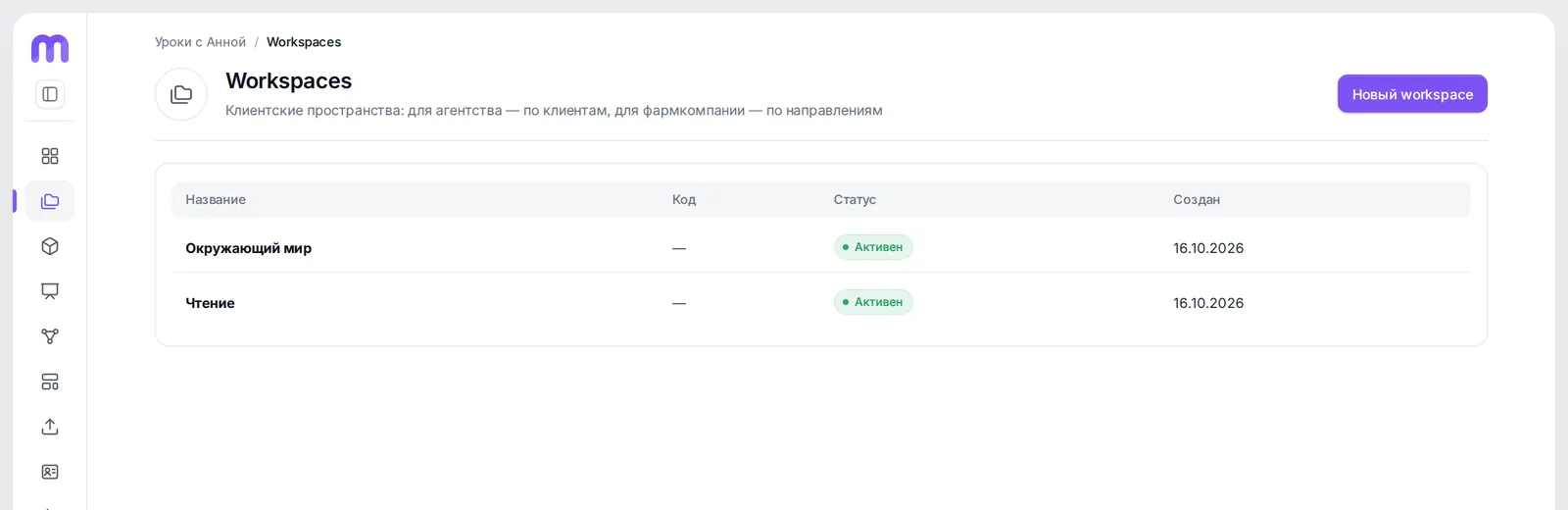
- New workspace
- Your workspaces for topics, clients or departments
A new presentation
“Presentations” section → “New presentation”. Choose the workspace and product, enter a name (in the example — “Lesson 3 — Planets around the Sun”) and the code WORLD_3: file names in exports are built from the code and slide numbers.
There is a second type too — a flow presentation: it assembles a show from slides of other presentations without copying them. Handy when the same slide is needed in several shows.
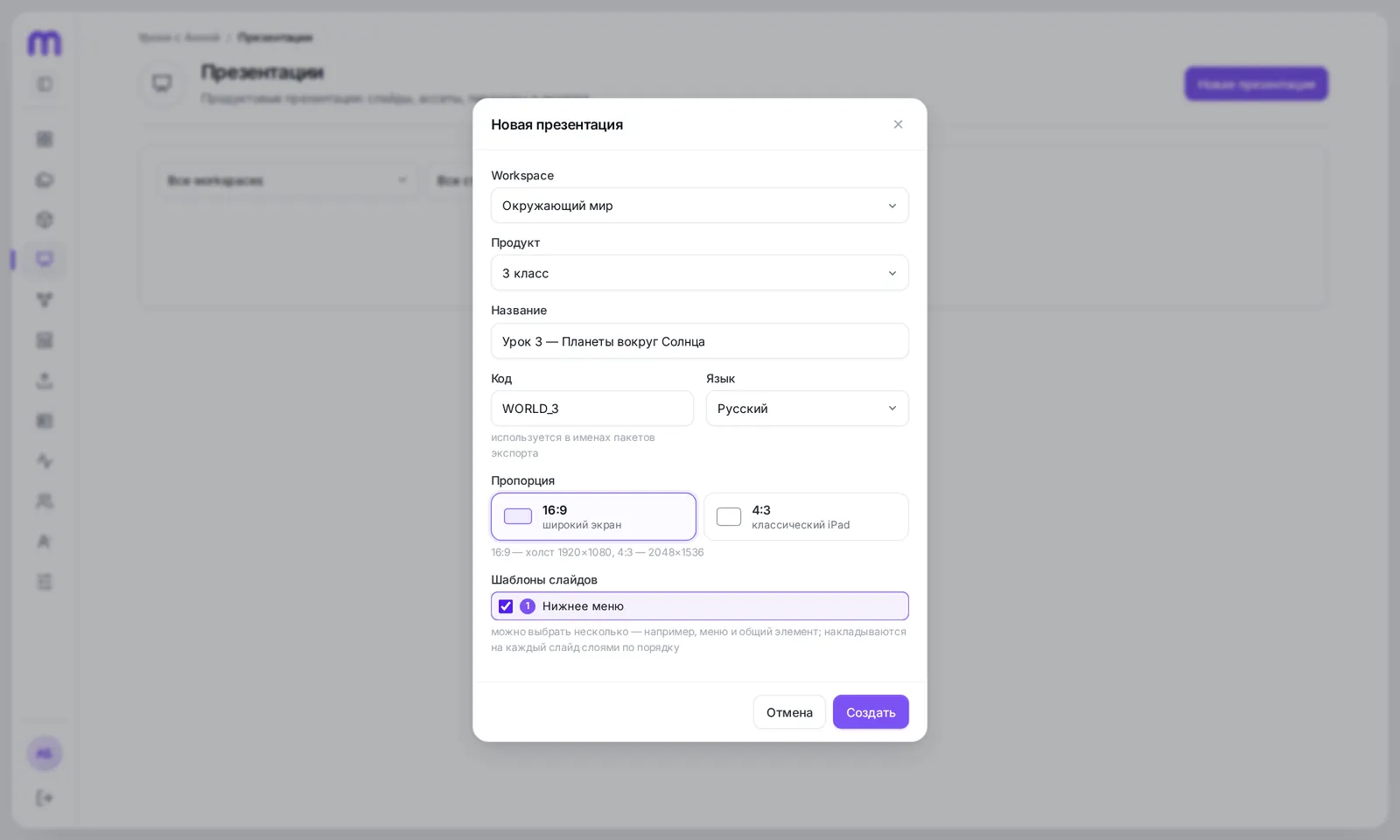
- Code — used in file names
- Template: a menu on top of every slide
- Create
PDF import and your own slides
The fastest way is “Import PDF”. Every page becomes a separate slide with a high-quality background; portrait pages fit neatly into the canvas. Import runs on the server: you can close the tab and the slides will appear on their own.
- Open the presentation → the “Slides” tab.
- Click “Import PDF” and choose a file.
- Wait for the “Slides added” message — the order matches the PDF.
No layout? Click “New slide” and build it in the editor from text, images, video and shapes. Slides can be dragged, duplicated and renamed; each has a “Draft / Ready” status.
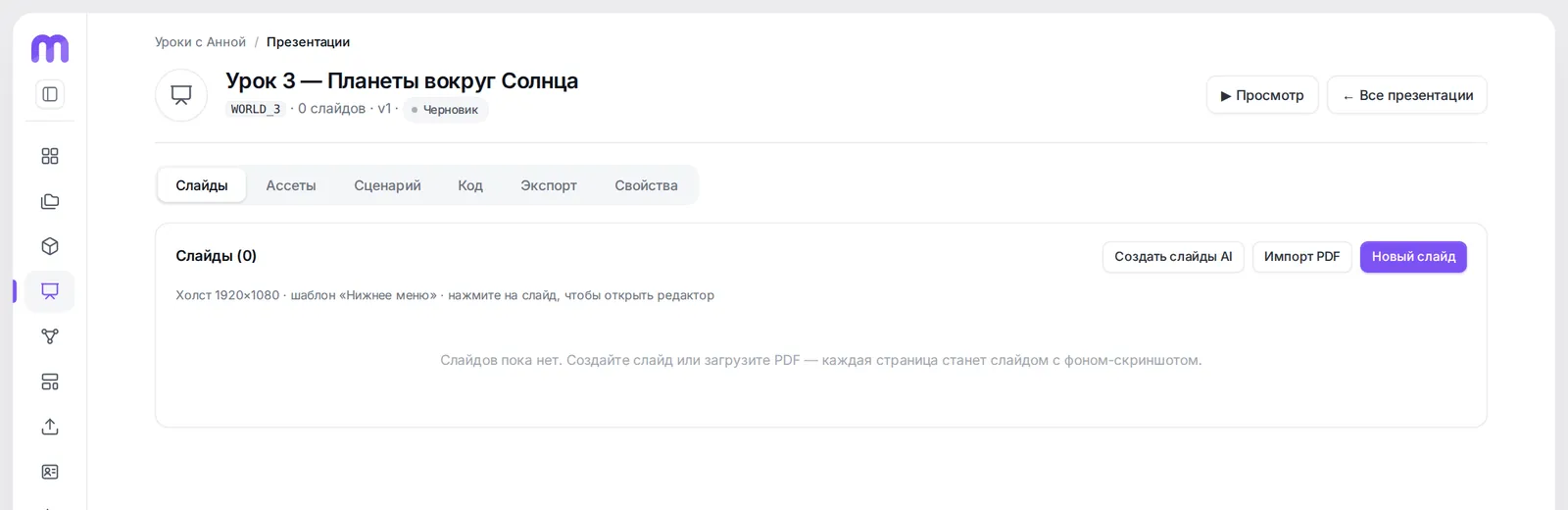
- PDF import: page → slide
- Draft from a description
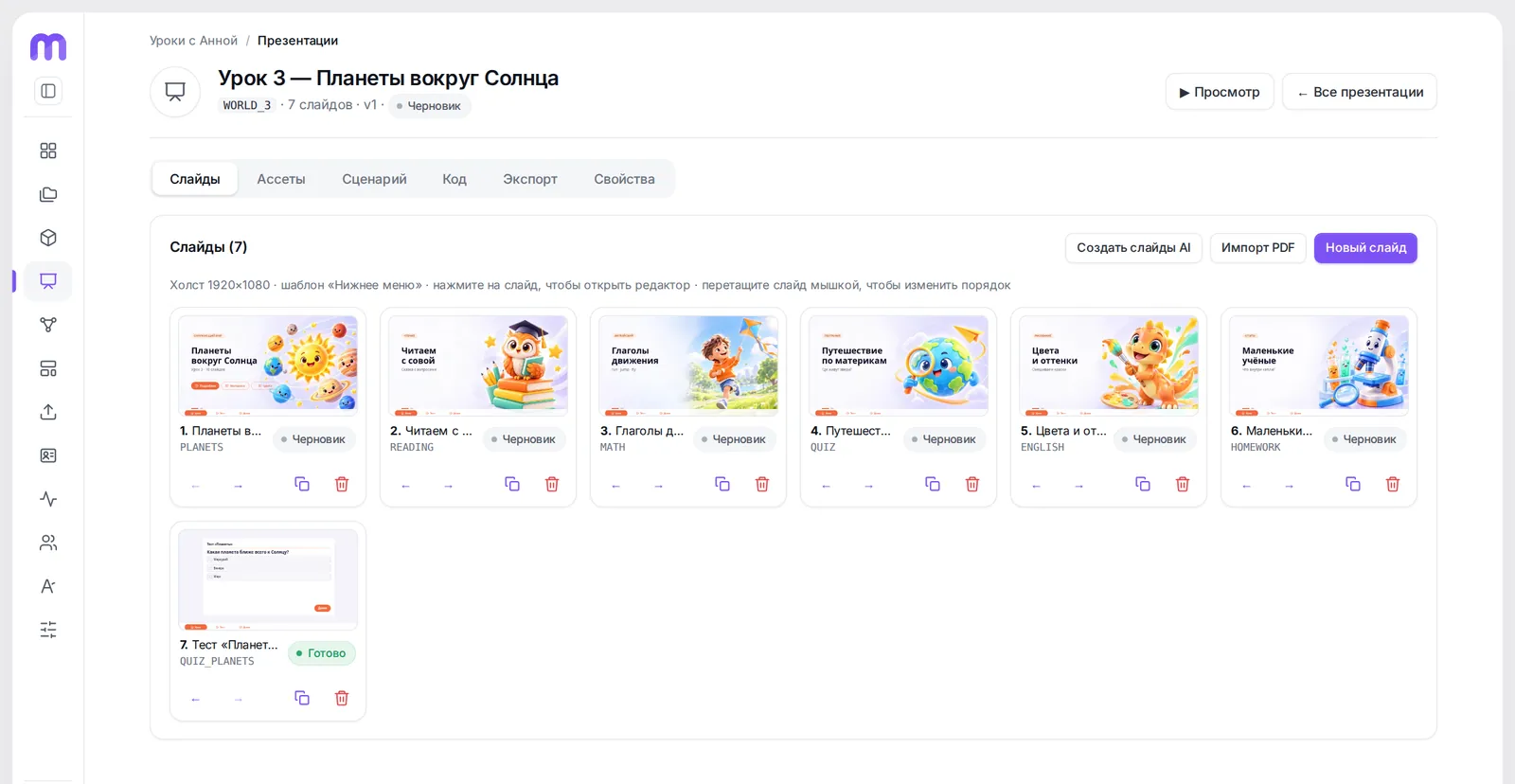
- Every PDF page is a separate slide
- Slides, assets, flow, export, properties
- Preview as a viewer sees it
An AI draft from a description
If you have nothing to start from, click “Create slides with AI” and describe the task in plain words: the topic, audience, number of slides, image style and whether you need a quiz. For example: “A 2nd-grade lesson about the planets: 10 slides, a quiz at the end, cartoon-style pictures”.
- Describe the task or pick a ready-made prompt example.
- Tick “Generate images” if you need illustrations and backgrounds.
- Click “Next”: the AI asks a couple of clarifying questions — answer or skip them.
- Slides are added to the end of the list as drafts — edit them like any others.
Generation runs in a separate secure service and uses AI credits: one for each created slide and each generated image; the balance is shown on the home page. Image tools (cutting out objects, separating text) do not use credits. The result is a draft: the teacher checks the facts and wording before presenting.
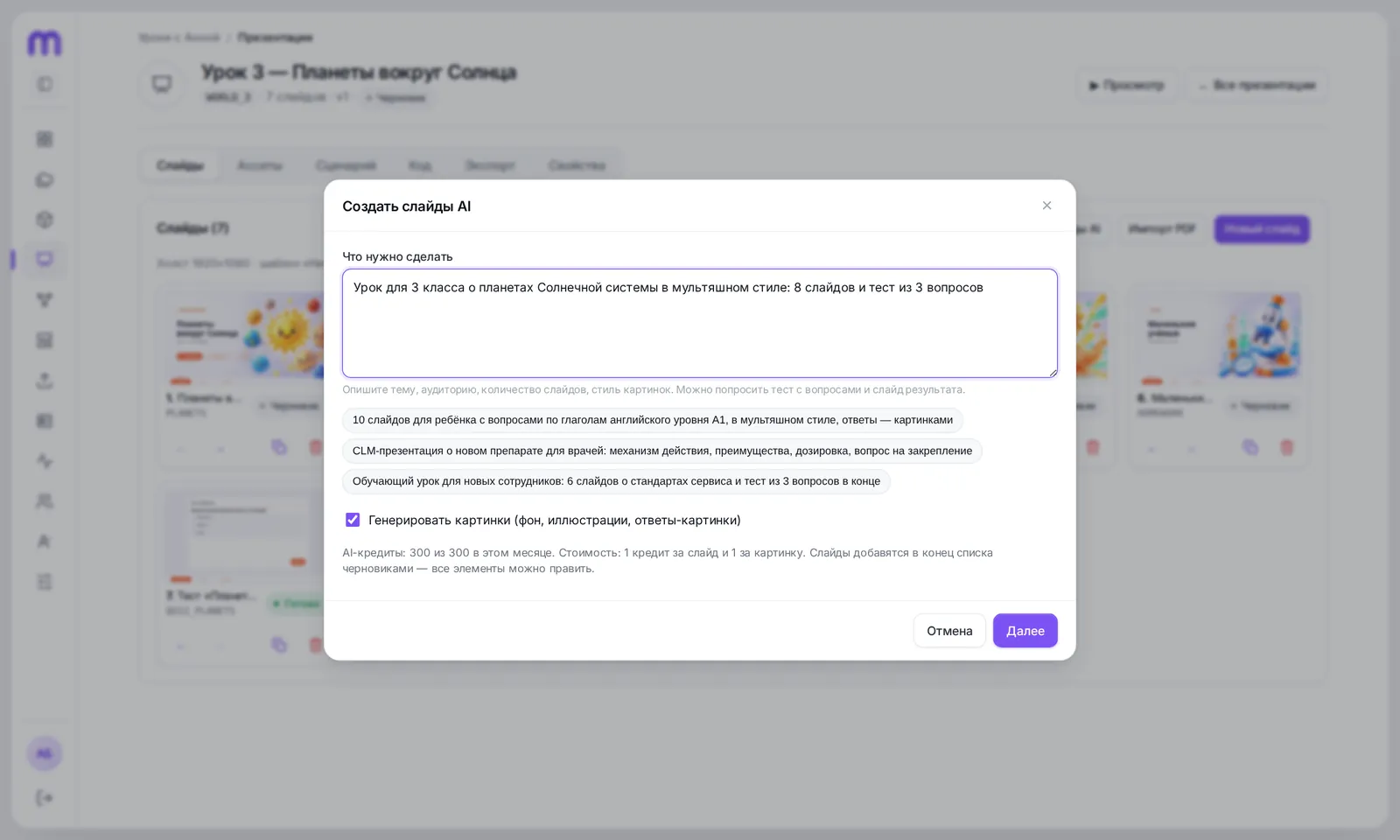
- Describe the topic, audience and number of slides
- Ready-made prompt examples
- Images are drawn by a neural network
The slide editor
Click a slide to open the editor. At the top — the element and action toolbar; on the left — the slide's layers and pop-ups; in the center — the canvas; on the right — properties of the selected element: position, size, rotation, opacity, style and the tap action.
Shortcuts: Shift — keep proportions, Alt — no snapping, arrows — nudge, Ctrl/⌘ + C / V — copy between slides, Ctrl/⌘ + Z — undo. The full slide code (HTML, CSS, JS) opens with the “Code” button — for developers.
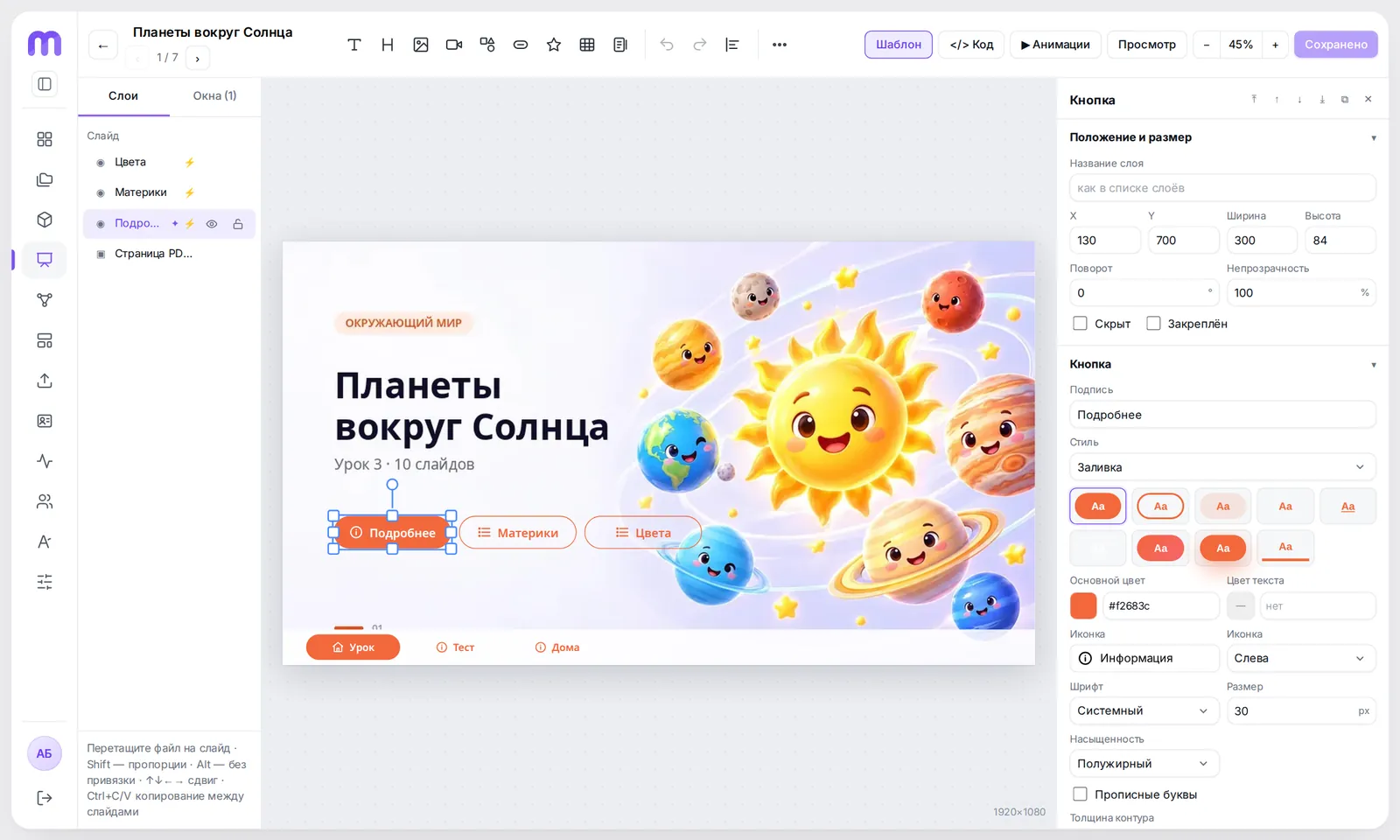
- Elements: text, image, video, button, survey, table…
- Slide code, animations, preview
- Layers and pop-ups of the slide
- The “More” button opens a pop-up
- Properties of the selected element
Buttons, pop-ups and transitions
Any element can get a tap action. This is how a static PDF becomes interactive: the student taps “More” and a pop-up opens, taps a section and goes to the right slide.
Pop-ups are edited in the “Pop-ups” tab on the left: size, position, background, corner radius, backdrop and entrance animation. A template can have pop-ups too — on each slide you can put your own content into them.

Animations
The “Animations” button in the editor shows the order in which elements appear. Each element has an effect (fade in, slide in, scale, bounce), a delay and a duration. For complex cases there is “Object animation”: start and end states (offset, scale, rotation, opacity, blur), triggered on show, on tap or by another button's action, with repeat and “back and forth”.
- Keep animations short: 0.4–0.9 seconds look lively and do not slow the presentation.
- Stagger delays by 100–200 ms — elements appear in a “wave”.
- The “Cut out object” AI tool separates an object from its background — you can animate it separately, and the background is restored.
Templates, fonts and styling
A template is a shared layer over (or under) all slides: a bottom menu, logo, page number, a “Home” button. In the example the “Bottom menu” template is three buttons in the lesson color. Change the template and every slide changes.
- “Templates” section → “New template” → choose the ratio and workspace.
- Build the elements as on a regular slide and publish the template.
- Attach it in the presentation or slide properties; on a slide you can replace the template texts or turn it off.
Brand fonts (WOFF2, TTF, OTF) are uploaded in the “Fonts” section — they are available in the editor and included in built packages.
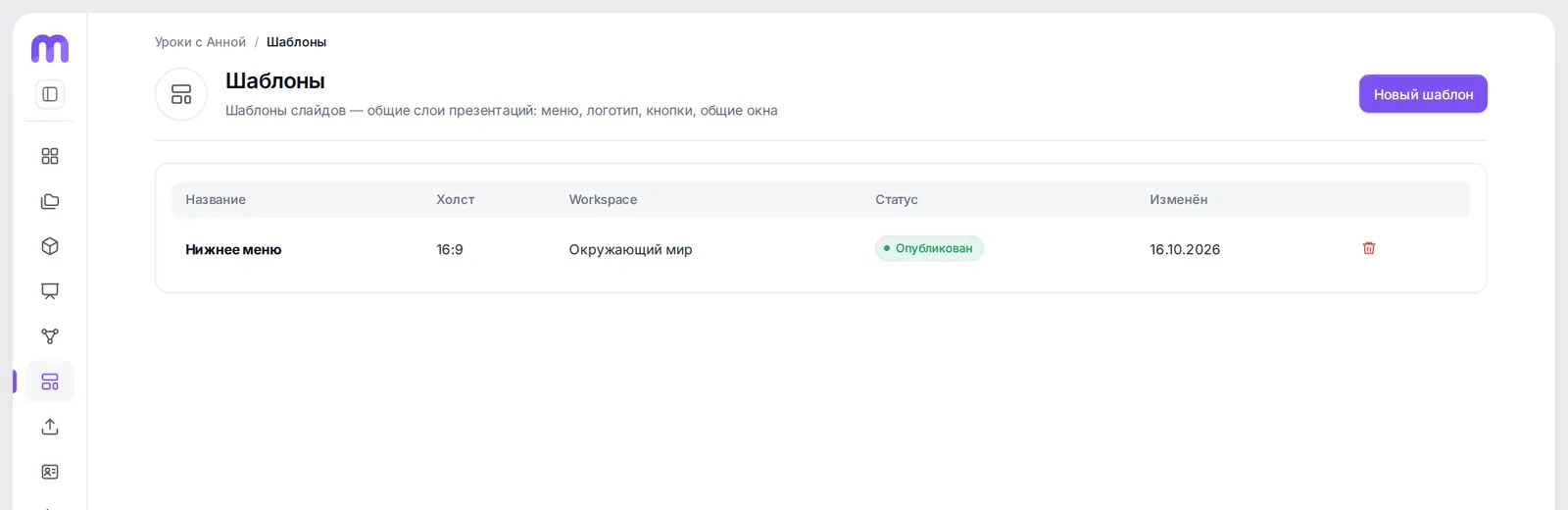
- New template
Image tools
The image editor (double-click an image or the background) has tools that save a designer hours of work:
Cut-out, outline and text separation run on Moduloom's own neural networks installed on our server: images are not sent to external services, and no AI credits are used. The original is kept, so the result can always be undone.
Surveys and quizzes
The “Survey” element can be added to any slide. Question types: single choice, multiple choice, short and long answer, scale, stars and NPS. Answers from students reach analytics even if the presentation ran offline.
- Click the survey icon on the element toolbar — a placeholder appears on the slide.
- On the right, set the survey name (shown in analytics and the LMS) and the heading on the slide.
- “Question editor”: texts, options, correct answers, points, images and explanations.
- “Logic”: one question at a time or a list, quiz or questionnaire, pass mark, instant checking, no skipping without an answer.
- Add “Survey result” to the next slide — it shows the score and pass status.
There are free-form surveys too: any slide element (an image, button or card) can be an answer option with “before” and “after selection” looks, and other elements can be shown depending on the answers.
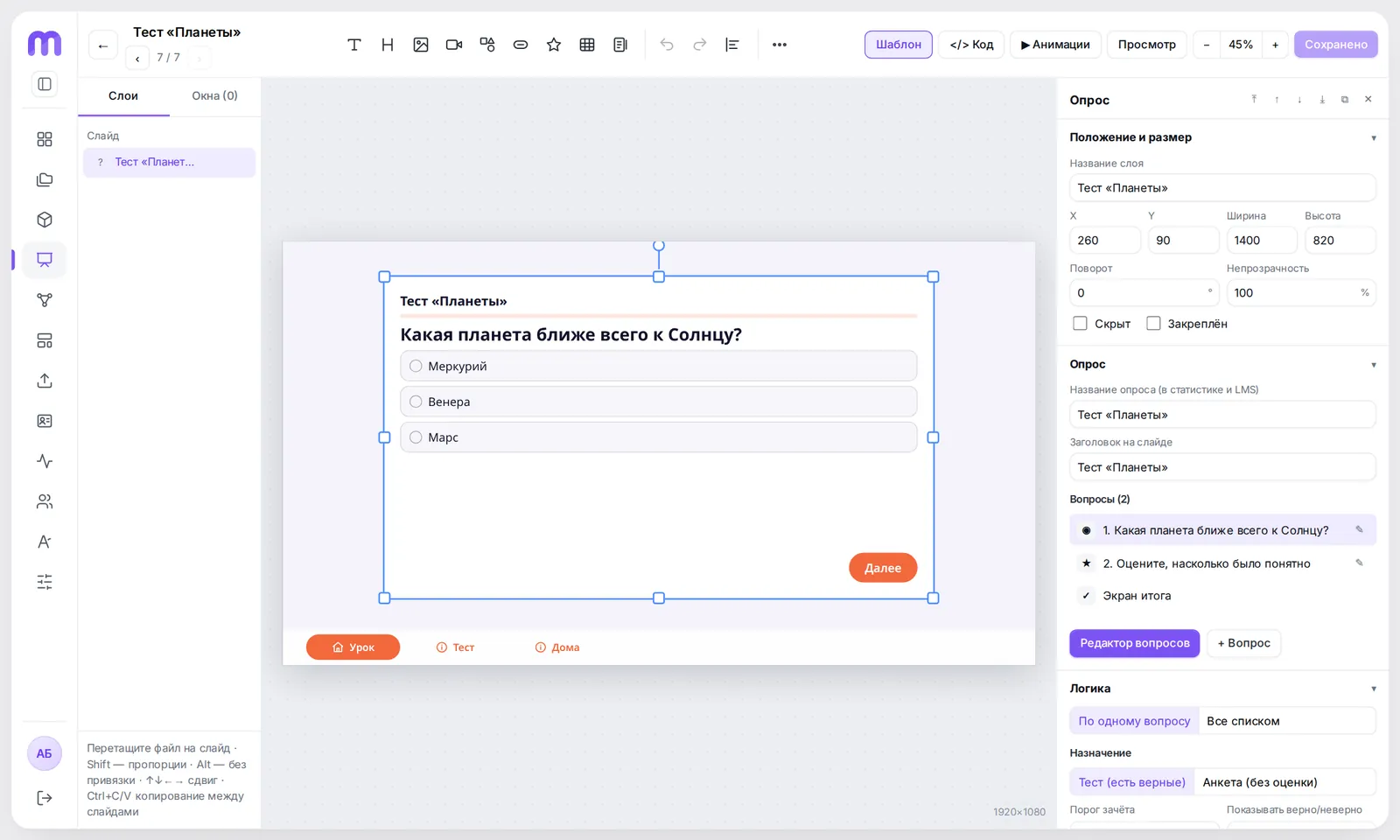
- The survey right on the slide
- Questions and the result screen
- Question editor
The flow and branches
The “Flow” tab → “Open builder”. The presentation is shown as a map: green arrows are swipe transitions along the main line, purple ones are branches from buttons, orange ones are template buttons. The map shows at a glance where the student goes and how they get back.
- Drag slides onto the canvas or click “Add several”.
- Connect slides: drag from the right edge of a card to the next slide.
- Branches appear automatically from buttons with the “Go to slide” action; the way back is the branch close button.
- “Arrange” lays the map out in lines, “Fit” shows it whole.
One presentation can contain several visits (flows) — for example, “first meeting” and “follow-up”. The visit is chosen when previewing and building a package.
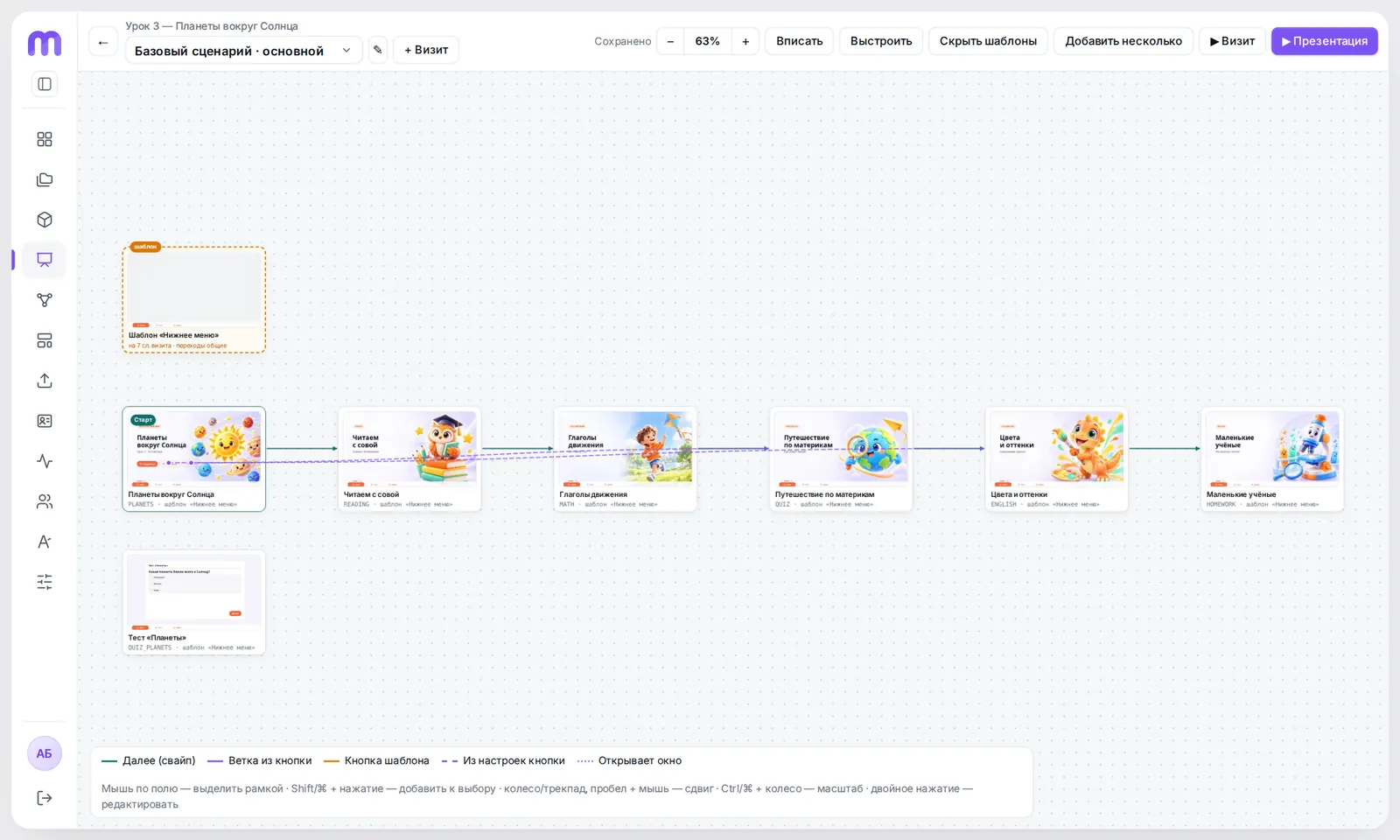
- Start of the presentation
- Arrange the map automatically
- Arrow color — transition type
Preview
The “Preview” button opens the presentation the way the student will see it: swipes, buttons, pop-ups, animations, surveys and video work in the browser exactly as in the package or app. On the right — a panel with the list of slides and visits; it can be collapsed.
- Swipe or arrows — the next slide in the flow.
- Slide and template buttons lead through the branches.
- The preview link can be sent to colleagues for review before publishing.
Statuses and approval
A presentation has a status: draft → in review → approved → archived. In the “Properties” tab it is sent for approval with a comment; the approver approves it or sends it back for changes. The history of statuses and comments is kept.
- Any edit to an approved presentation (slides, flows, export fields, templates) sends it back for approval.
- In the company settings you can allow distribution and export of approved presentations only.
- Packages already built and versions already published remain available.
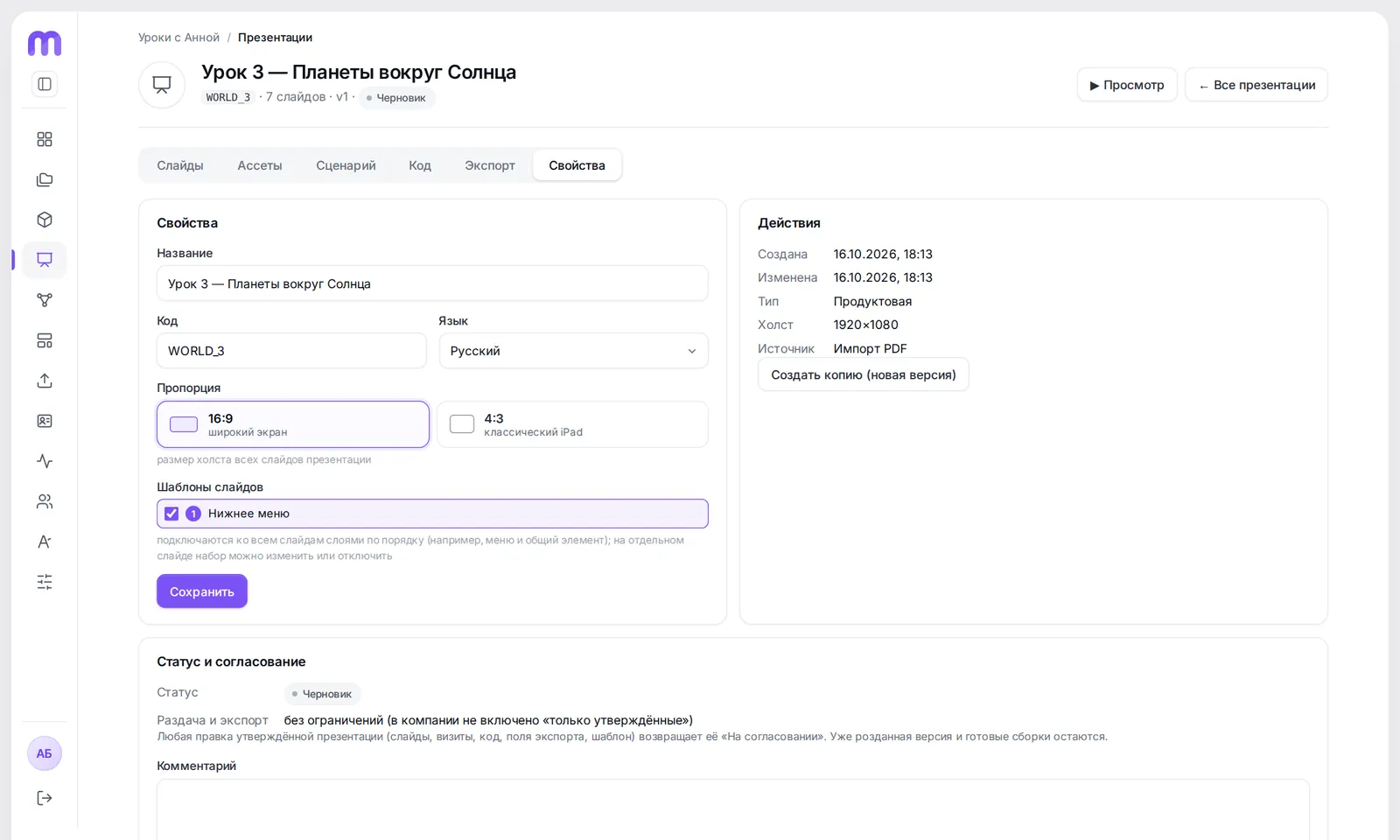
- Status, comment and approval history
Publishing: link, SCORM and CLM
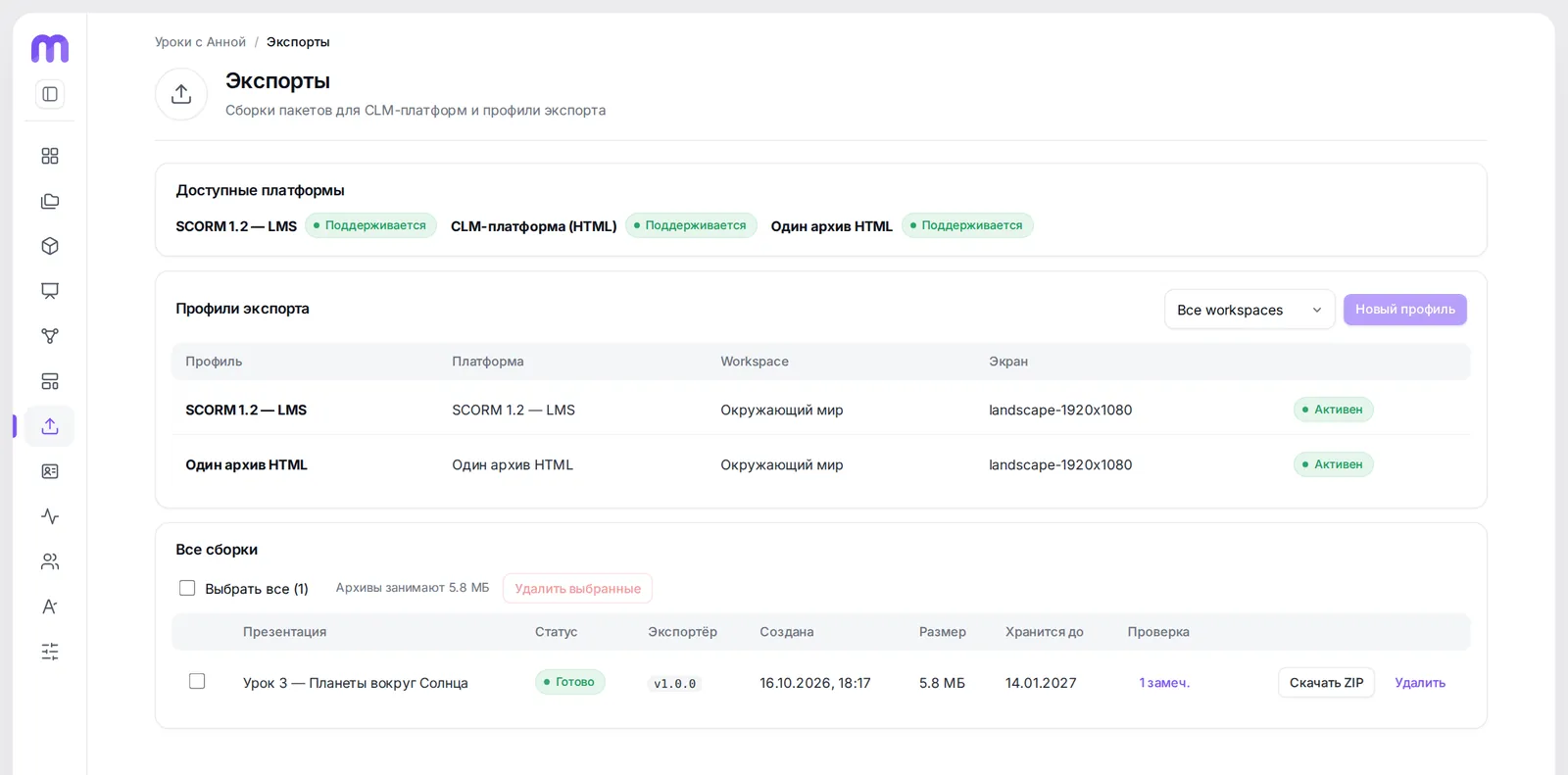
One presentation — several ways to publish. The channels available to your company are shown on the home page and in the “Exports” section; they are enabled by the Moduloom administrator.
- “Export” tab → “New profile”: channel, workspace, screen.
- Choose the profile and the visit → “Build”.
- The build runs in the background and is validated; when the status is “Ready” — “Download ZIP”.
- The validation report shows issues before you upload to the platform.
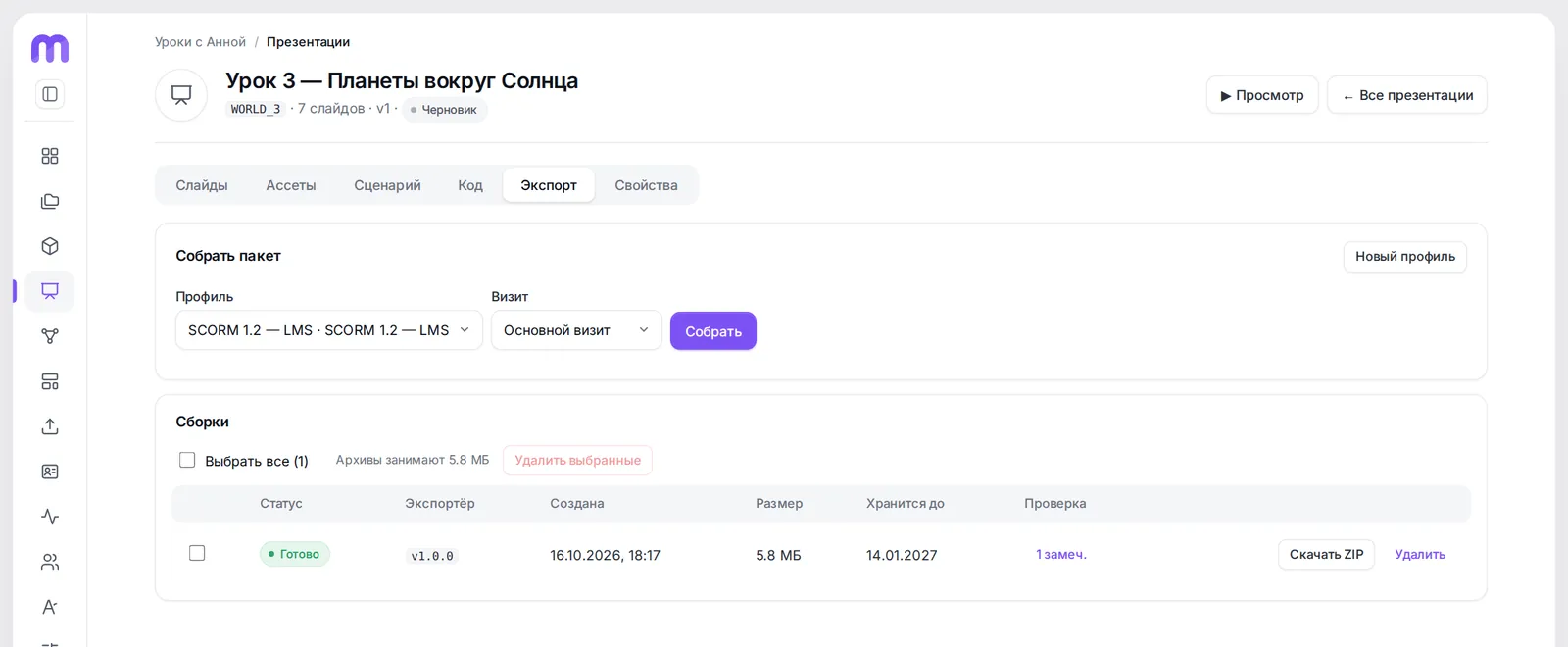
- Build a package
- Finished builds: download, validation report
Viewers and sign-in with a code
A profile is a person or a device that can view presentations without access to the account. Students sign in via the company link: they enter an email and the code from the email — and see only the lessons opened to them.
- “Profiles” section → “Add profile”: name, email, group.
- Tick the presentations this profile can open.
- In the “Publications” tab click “Publish” — the current version goes to the devices.
- Click “Invite” — an email with a sign-in link is sent.
Groups (“class”, “region”, “department”) are used for analytics filters. Access can be revoked at any time — the presentation disappears from the device at the next connection.
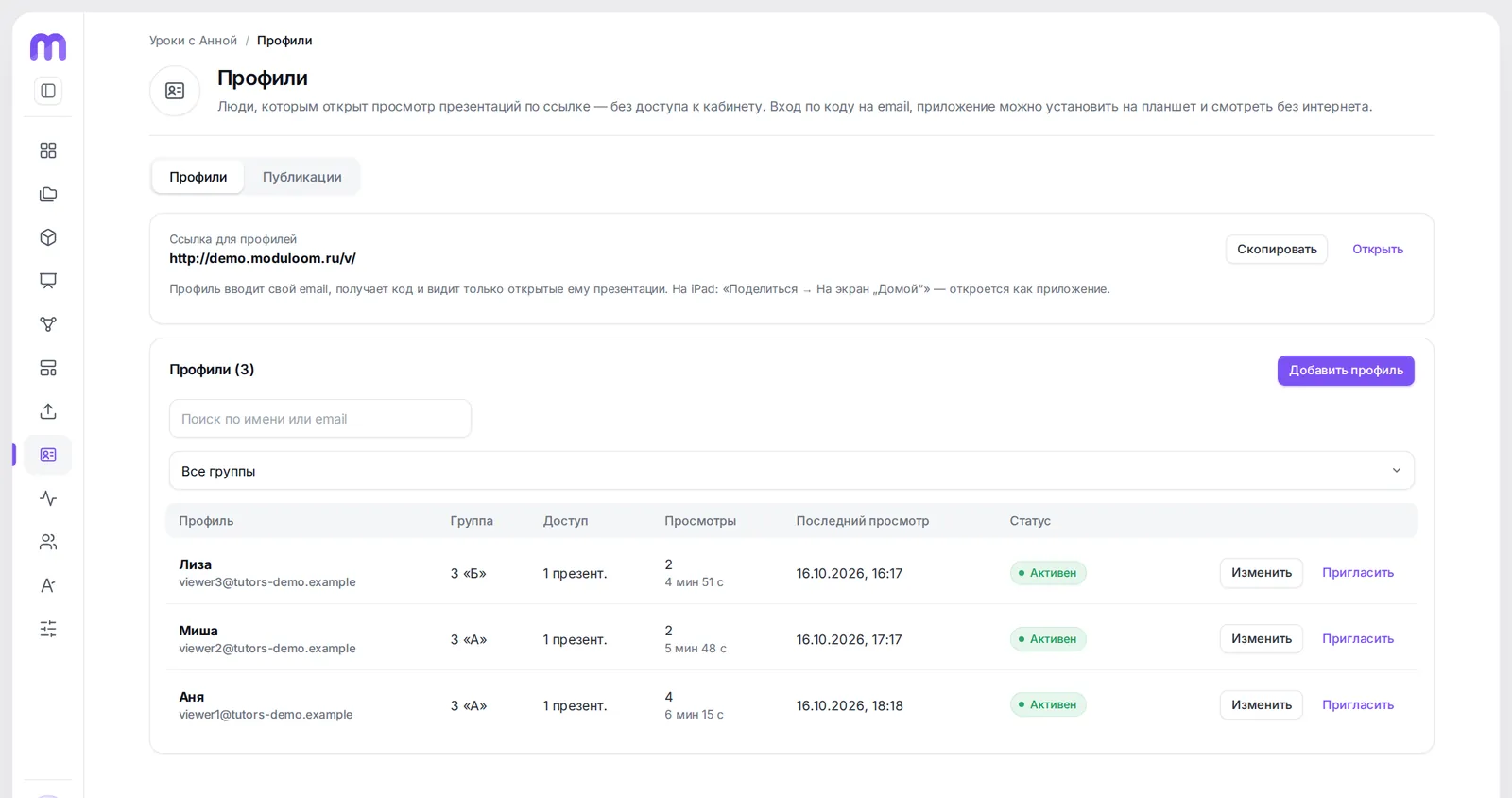
- Link to the viewer app
- Add a profile
The tablet app and offline mode
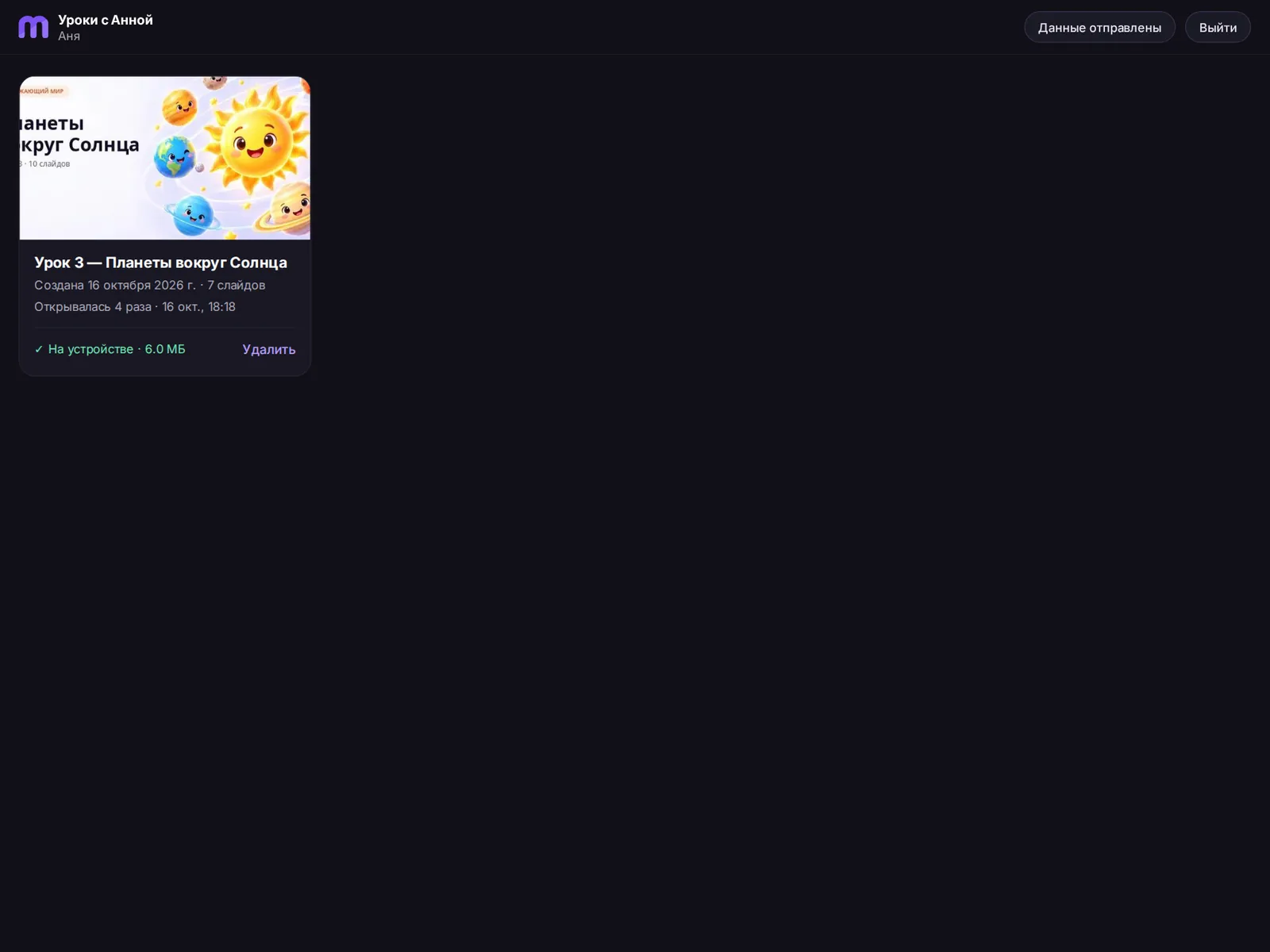
The profile link opens on any device and can be installed as an app: on iPad — “Share → Add to Home Screen”, on Android — “Install app”. Opened presentations are saved on the device and shown without internet.
- The “On device” badge shows the presentation is fully downloaded.
- The teacher swipes through slides; the slide panel opens from the edge of the screen.
- Answers and time on slides are stored on the device and sent once there is a network (“Data sent”).
- A new version downloads automatically at the next connection.

Analytics and sessions
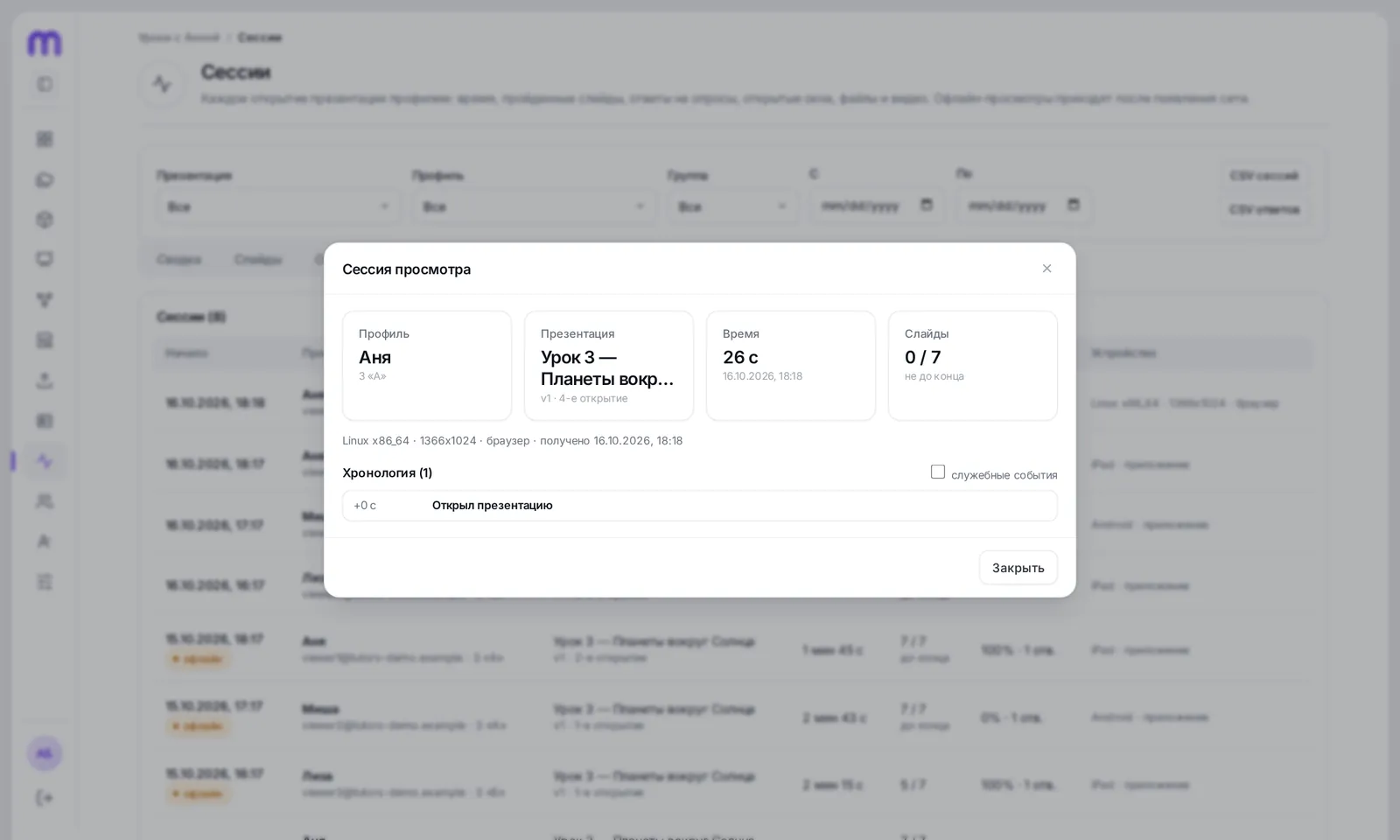
The “Sessions” section collects every time a profile opens a presentation: when, how long, which slides were viewed, what was opened and what was answered. Offline views arrive once there is a network and are marked separately.
Filters at the top: presentation, profile, group and dates. The “Sessions CSV” and “Answers CSV” buttons export data for Excel or a report.
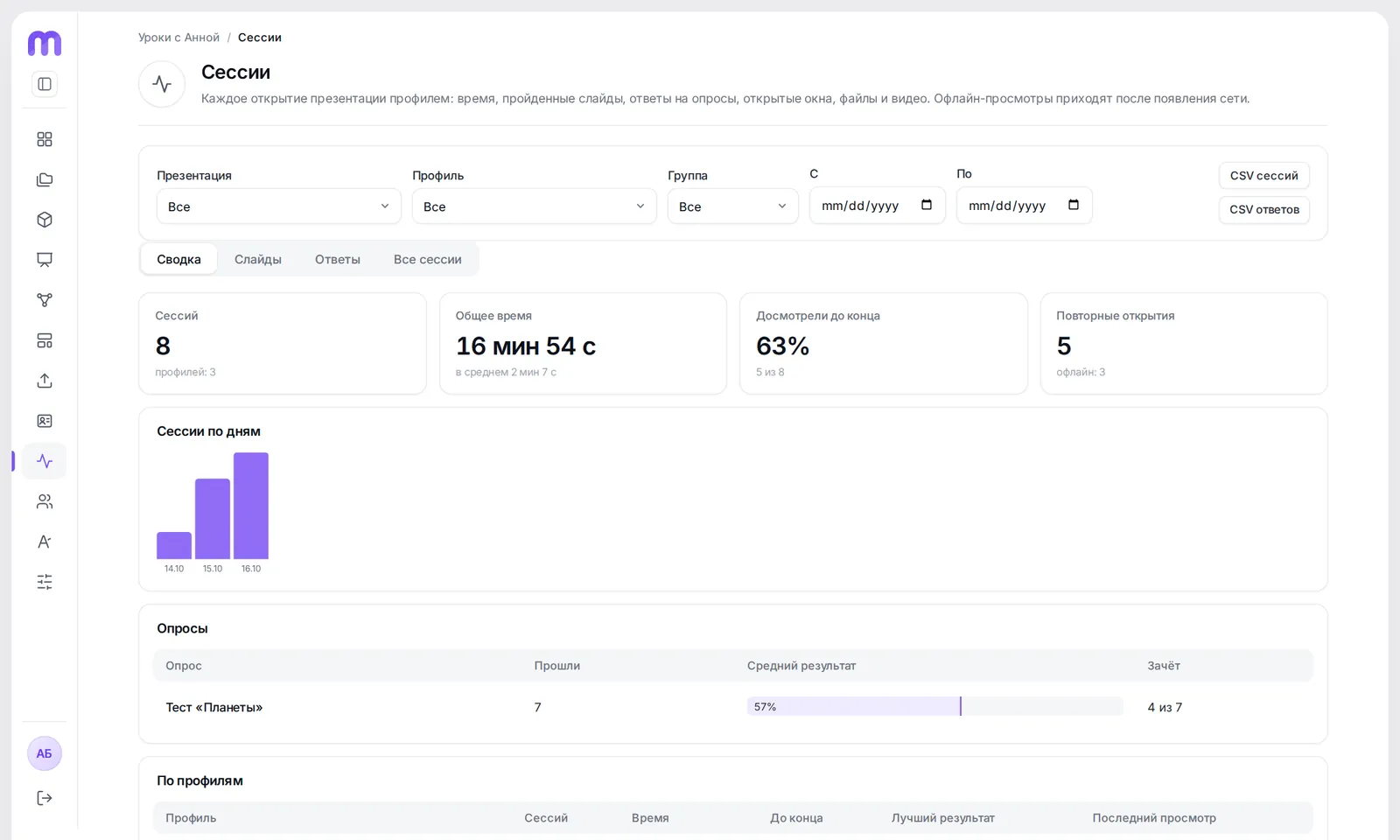
- Sessions, time, completions, repeats
- Activity by day
- CSV export of sessions and answers
Team and roles
The “Users and permissions” section: an administrator invites colleagues and contractors by email, assigns a role and, if needed, specific access rules for a workspace, product or presentation. A deny always beats an allow.
The “Permission history” and “Activity log” tabs show who created, changed, approved, built or deleted what, and when.
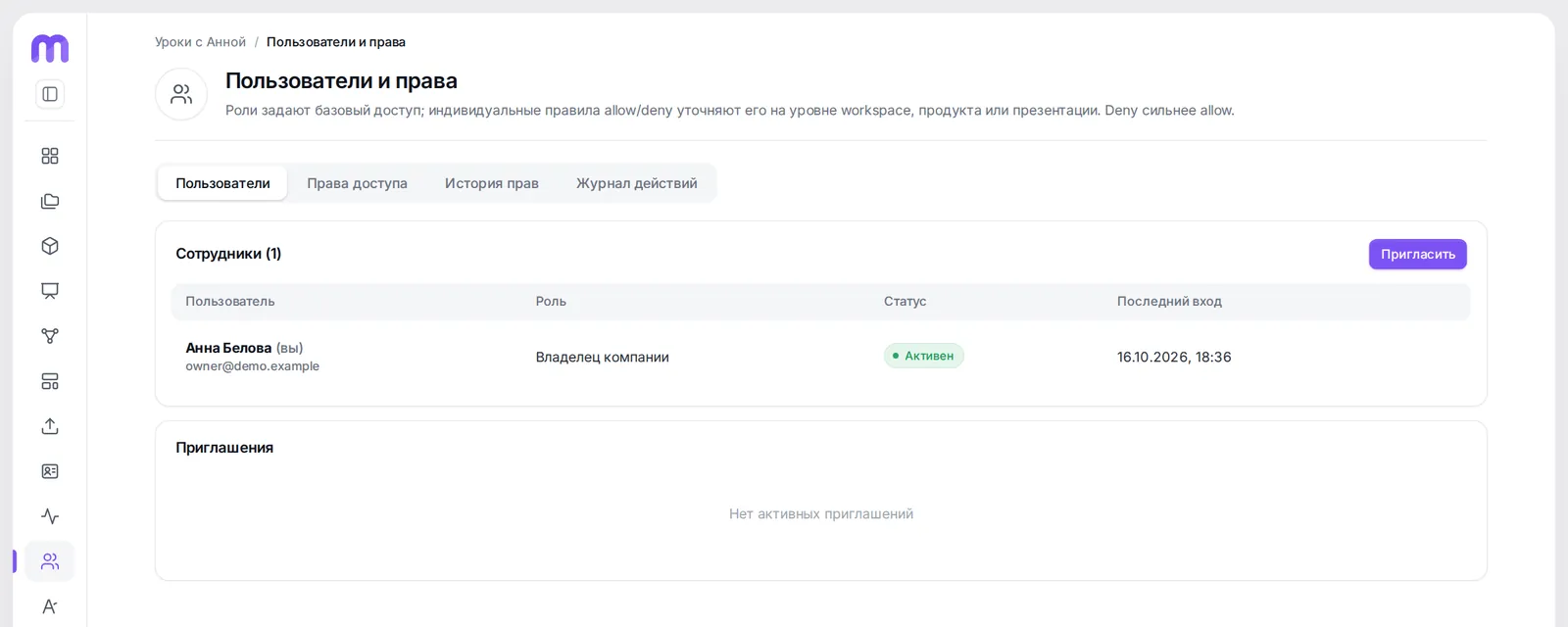
- Invite by email
- Permissions, history, activity log
Recipe: tutors in one evening
The short path from a file to a show — following the steps of this manual.
Frequently asked questions
Does a student need an account or password?
No. The student enters an email and gets a one-time code. A shared family email works too — the profile is still separate.
Can a lesson run without internet?
Yes. The lesson is saved in the tablet app and works offline; quiz results are sent once the connection is back.
Do I need to install anything?
No. The account works in a browser. The tablet presenting app installs from the browser in a couple of taps, without app stores.
Where is data stored?
Files are kept in private storage in Russia, and access is granted via temporary links. Data of different companies is isolated from each other.
Can I work with ready-made HTML?
Yes. You can insert your own HTML element into a slide or edit the full slide code — HTML, CSS and JS — and add your own files.
What happens when AI credits run out?
Only generating slides and images from a description stops working. Everything else, including “Cut out object” and “Separate text”, keeps working — those tools do not use credits. Credits can be topped up in packs in the account.
Is the account available in English?
The account interface is currently in Russian; an English interface is on the way. This manual names every control in English, and the screenshots show where to find it.
Who can use Moduloom right now?
The service is currently available to customers in Russia: payment is possible only through Russian representatives. Once paid in Russia, Moduloom can be used from anywhere in the world. We will be entering your markets soon.
Shall we try it on your materials?
Send us a PDF — we will show how it becomes interactive.